



Home > Printing News and Printing Knowledge > How to Convert Adobe Illustrator Files to Print-Ready PDF?
How to Convert Adobe Illustrator Files to Print-Ready PDF?
Published Time:2026-10-19 Original Source:How to Convert Adobe Illustrator Files to Print-Ready PDF?
Q&A: How to Convert Adobe Illustrator Files to Print-Ready PDF for Professional Printing
Q1: Why is PDF the standard format for delivering print files instead of sending the original AI file directly?
A1: PDF (Portable Document Format) is the global industry standard for print delivery because it ensures 100% cross-platform, cross-device format fidelity. It fully embeds all fonts, high-resolution images, vector paths, and color profiles from your Illustrator document, eliminating compatibility issues like missing fonts, broken links, or layout distortion that often occur when opening native .ai files on different software versions or systems. Printers universally follow PDF/X international standards to guarantee consistent color, size, and bleed from design to final printed output.
Q2: What critical pre-export preparations must I complete in Illustrator before generating a print-ready PDF?
A2: You must finish these 4 core pre-checks first:
Switch color mode to CMYK: Convert all RGB elements to CMYK via Edit > Edit Colors > Convert to CMYK to avoid severe color shifts during offset printing. For special spot colors (like gold foil), define them in the Swatches panel and confirm compatibility with your printer.
Process fonts properly: Either embed all fonts via File > Document Setup > Fonts or convert all text to outlines using Type > Create Outlines (remember to back up your editable original AI file first) to prevent missing font errors at the print shop.
Embed all linked assets: Open the Links panel, select all external images, and click the "Embed" button to ensure no high-resolution 300dpi photos are lost during file transfer.
Set 3mm bleed: Go to File > Document Setup to define a 3mm bleed margin, and extend all design elements to the bleed area to avoid unwanted white edges after trimming.
Q3: What is the step-by-step workflow to export a print-qualified PDF directly from Adobe Illustrator?
A3: Follow this verified professional workflow:
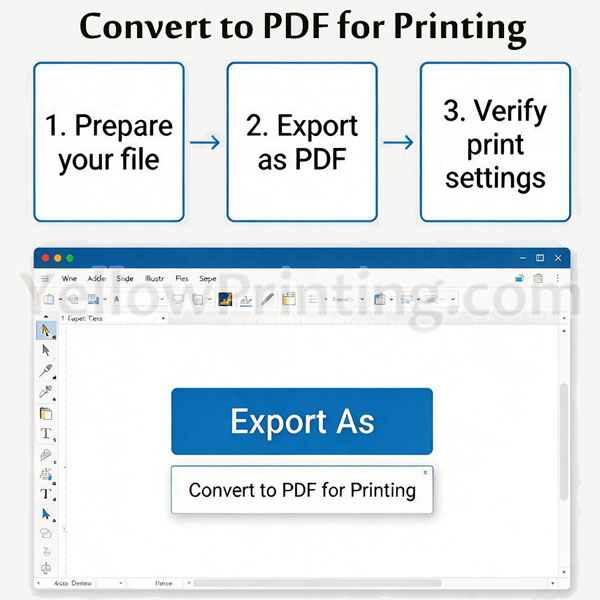
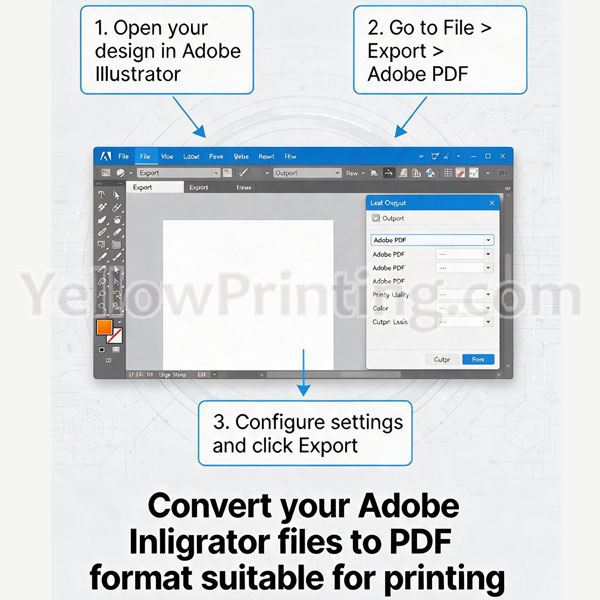
After finishing pre-export checks, click File > Save As, select "Adobe PDF (*.pdf)" as the output format, name your file and choose a save location.
In the Adobe PDF Preset dropdown, select the industry-standard PDF/X-4:2008 preset, which automatically meets all print specifications for commercial production.
Navigate to the "Compression" tab, set all color/grayscale bitmap downsampling to 300ppi with bicubic smoothing, to balance file size and print sharpness.
Go to the "Marks and Bleeds" tab, check "Trim Marks" and confirm the bleed value is set to 3mm to match your pre-defined document settings.
Click "Save PDF" to complete the export, then open the final file in Acrobat to verify no missing elements or color errors before sending it to the printer.
Q4: What common mistakes will ruin my print PDF, and how can I avoid them?
A4: The top 3 most frequent errors and fixes are:
RGB to CMYK color mismatch: Never export an RGB document directly to PDF for printing. Always convert to CMYK in Illustrator first, and embed the correct ICC color profile in the PDF output settings to keep colors consistent.
Low-resolution images: If your embedded images are below 300dpi, they will appear pixelated on the final print. Use the Links panel in Illustrator to check image resolution before export, and replace any low-quality assets.
Unprocessed transparency effects: Complex gradients, drop shadows, or opacity layers may cause rendering errors at the print shop. Enable "Overprint Preview" in Illustrator to check for transparency issues, and use the PDF/X-4 preset which natively supports safe transparency handling for modern RIP printers.
Q5: Is it acceptable to use online conversion tools to turn AI files into print-ready PDFs?
A5: Online tools like Smallpdf or CloudConvert are only suitable for simple, low-stakes documents. For professional commercial printing, you must export directly from Adobe Illustrator. Online converters often strip critical print metadata, fail to embed fonts correctly, downsample images below 300dpi, and cannot properly preserve spot color channels or bleed settings, which will lead to unqualified print outputs.